ggplot_dag() returns a plain ggplot object, and dag_layers() a plain list of layers - both compose with the rest of ggplot2 like any other plot.
dag <- as_dag(data.frame(
  from = c("a", "a", "b", "c"),
  to = c("b", "c", "d", "d")
))
Titles, captions and annotations
ggplot_dag(dag) + labs(title = "A small pipeline", subtitle = "four targets")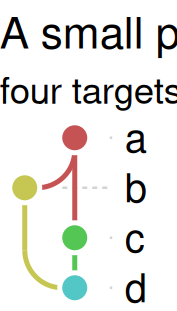
ggplot_dag(dag) + labs(caption = "Generated with ggtargets")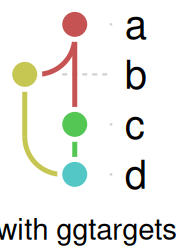
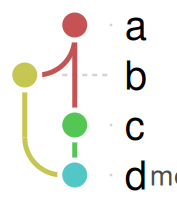
lay <- dag_layout(dag, style_metro())
node_d <- lay$nodes[lay$nodes$name == "d", ]
ggplot_dag(dag) +
  annotate(
    "text",
    x = node_d$x + 30,
    y = node_d$y,
    label = "merge point",
    hjust = 0,
    color = "gray30",
    size = 3
  )
Highlighting a path
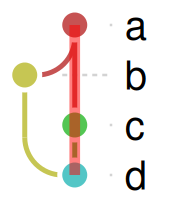
edge_paths (in a dag_layout) has one full point-path per graph edge - from/to/piece/x/y/order - even where the default drawing shares one line across several edges. Filter it to the edges on a path of interest, sort each edge’s points by order (their order along the path), and layer it on top of the base plot to trace that path without disturbing anything else:
path_edges <- data.frame(from = c("a", "c"), to = c("c", "d"))
highlight <- merge(lay$edge_paths, path_edges)
ord <- order(paste(highlight$from, highlight$to), highlight$order)
highlight <- highlight[ord, ]

ggplot_dag(dag) +
  geom_path(
    data = highlight,
    aes(x = x, y = y, group = paste(from, to)),
    color = "red",
    linewidth = 1.5,
    alpha = 0.5
  )
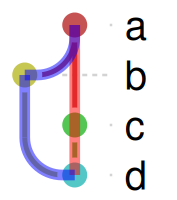
Highlighting more than one path at once works the same way - give each its own subset and color:
path1 <- merge(lay$edge_paths, data.frame(from = c("a", "c"), to = c("c", "d")))
path2 <- merge(lay$edge_paths, data.frame(from = c("a", "b"), to = c("b", "d")))
path1 <- path1[order(paste(path1$from, path1$to), path1$order), ]
path2 <- path2[order(paste(path2$from, path2$to), path2$order), ]

ggplot_dag(dag) +
  geom_path(
    data = path1,
    aes(x = x, y = y, group = paste(from, to)),
    color = "red",
    linewidth = 1.5,
    alpha = 0.5
  ) +
  geom_path(
    data = path2,
    aes(x = x, y = y, group = paste(from, to)),
    color = "blue",
    linewidth = 1.5,
    alpha = 0.5
  )
Building the plot layer by layer
dag_layers() returns the layers alone, for full manual assembly - useful for inserting a custom layer between ggtargets’ own layers (here, a background rectangle drawn before the nodes but after the edges):
layers <- dag_layers(lay)
is_node_layer <- vapply(
  layers,
  function(l) {
    inherits(l, "Layer") && inherits(l$geom, "GeomPoint")
  },
  logical(1)
)
first_node <- which(is_node_layer)[1]

ggplot() +
  layers[seq_len(first_node - 1)] +
  annotate(
    "rect",
    xmin = -Inf,
    xmax = Inf,
    ymin = 40,
    ymax = 60,
    fill = "khaki",
    alpha = 0.3
  ) +
  layers[seq(first_node, length(layers))] +
  dag_theme()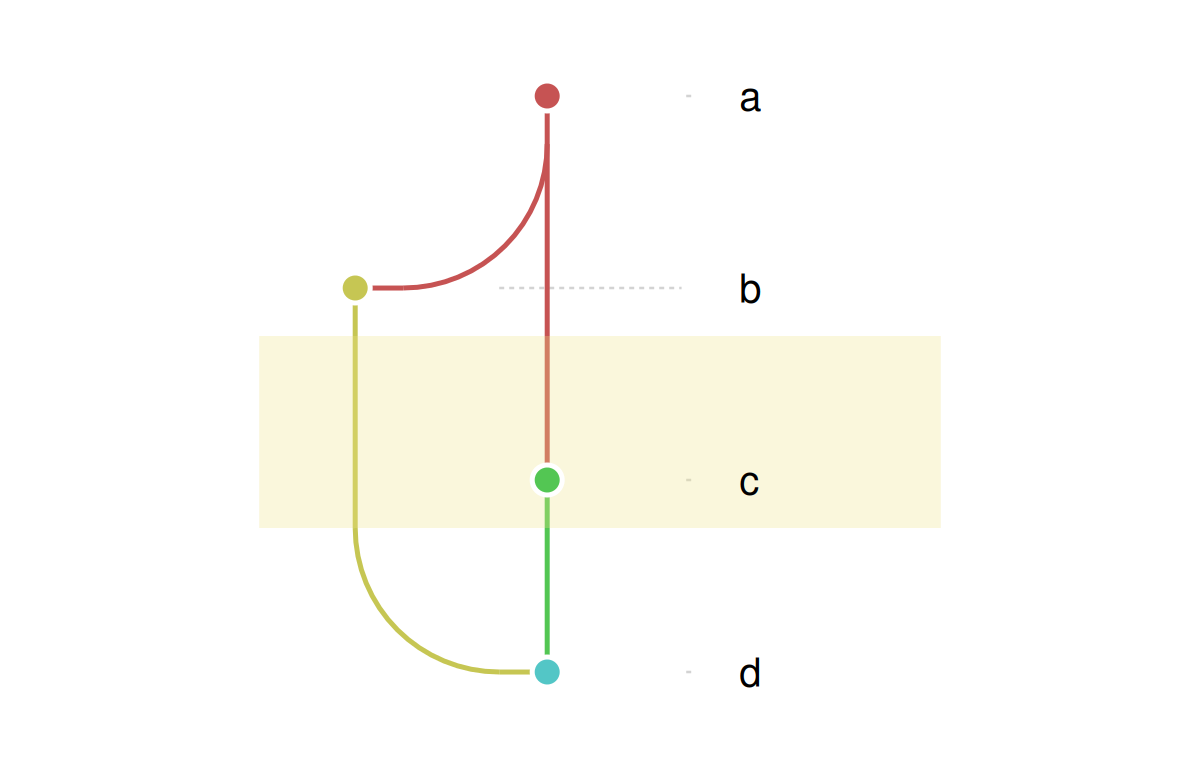
Combining plots with patchwork
Two ggtargets plots (or a ggtargets plot and any other ggplot) combine like any other patchwork layout. Patchwork does its own panel layout, so use fixed_size = FALSE and let it size the panels:
dag2 <- as_dag(
  data.frame(from = c("a", "a", "b", "c"), to = c("b", "c", "d", "d")),
  nodes = data.frame(
    name = c("a", "b", "c", "d"),
    status = c("uptodate", "outdated", "errored", "queued")
  )
)
p1 <- ggplot_dag(dag, fixed_size = FALSE) + labs(title = "default")
p2 <- ggplot_dag(
  dag2,
  node_color = "status",
  palette = targets_status_colors(),
  fixed_size = FALSE
) +
  labs(title = "by status")
patchwork::wrap_plots(p1, p2)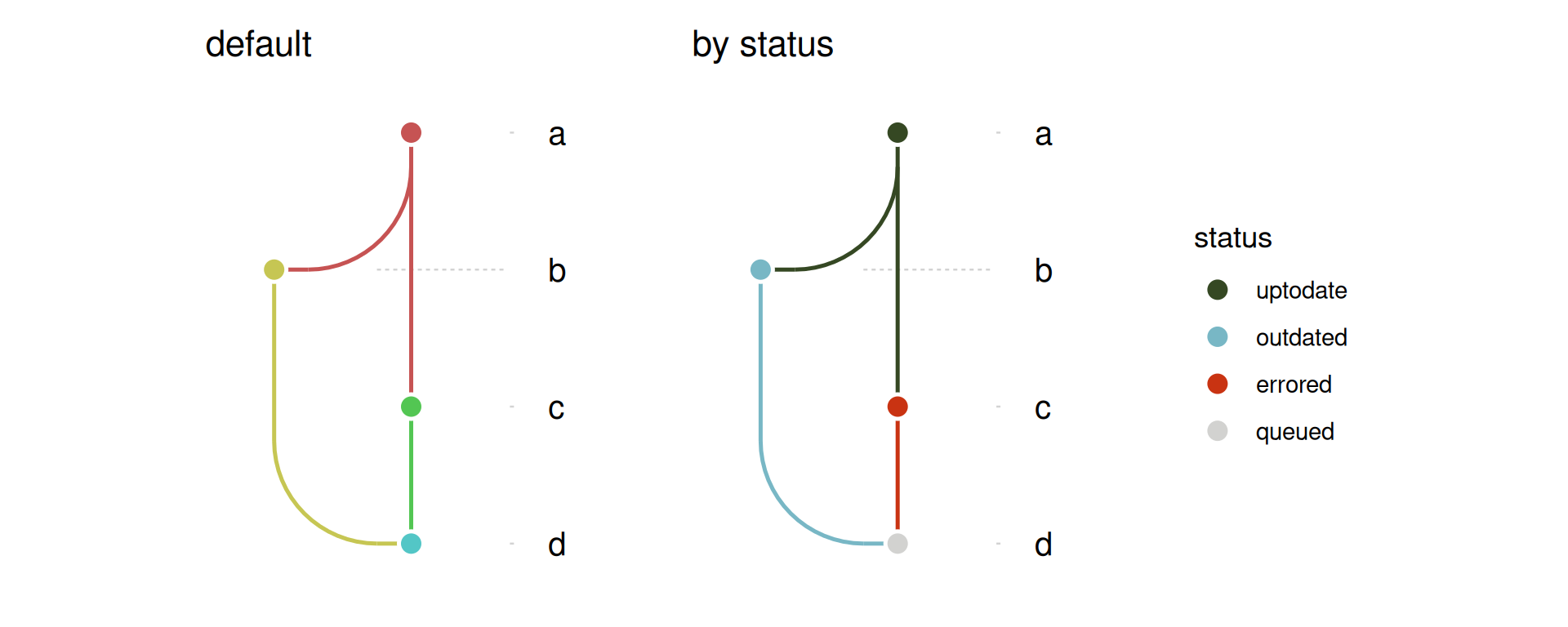
Overriding the theme
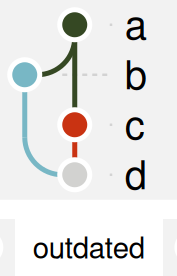
The plot’s theme (added by dag_theme()) is an ordinary ggplot2 theme, so any of its elements can be overridden afterwards - here, a legend moved to the bottom and set on a shaded panel background:
ggplot_dag(dag2, node_color = "status", palette = targets_status_colors()) +
  theme(
    legend.position = "bottom",
    panel.background = element_rect(
      fill = "gray95",
      color = NA
    )
  )
Exporting at different sizes
ggplot_dag() gives the panel a fixed physical size: one data unit is zoom pixels at 96 dpi. Element sizes therefore stay the same across graphs. dag_size() returns the whole plot’s size in inches, legend and titles included, and ggsave_dag() saves at that size. Its scale argument raises resolution (dpi), not physical size. zoom changes the physical size, scaling nodes, lines and text together. ggplot2::ggsave() works too, as long as you pass it dag_size()’s width and height:
p <- ggplot_dag(dag)
dag_size(p)
#>     width    height
#> 0.7395833 0.8333333

# true pixel size
ggsave_dag(tempfile(fileext = ".png"), p)
# 3x resolution, same proportions
ggsave_dag(tempfile(fileext = ".png"), p, scale = 3)
# twice as large
ggsave_dag(tempfile(fileext = ".png"), ggplot_dag(dag, zoom = 2))
Adding a complete theme, such as + theme_void(), replaces the fixed panel size, and the plot stretches to the device again. Override individual theme() elements instead, as above.